 Loquor AAC
Symbol Library
Your complete vocabulary in one place. Search, filter, favourite, hide, and edit every symbol - with full control over how each one looks, sounds, and behaves in the progressive learning system.
Browse and Find
Smart Search and Filters
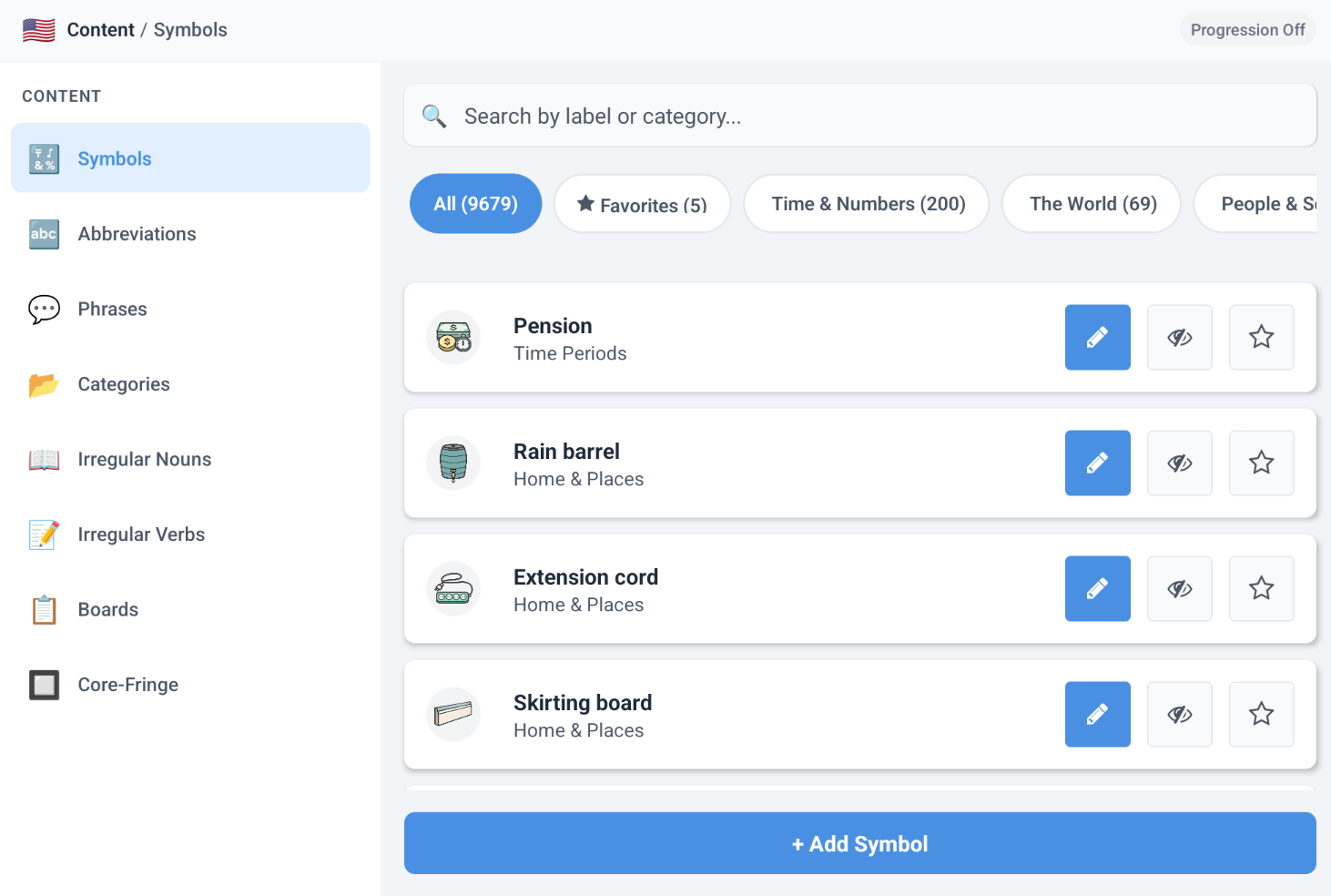
Quickly find any symbol in your vocabulary. Search ranks results intelligently, and dynamic filter chips adapt to the categories that actually exist.
- Search by label with smart ranking - exact matches first, then starts-with, then contains
- Filter chips: All, Favourites, plus one chip per category that currently has symbols
- Each symbol card shows the image or emoji, label, category, and quick-action buttons
- Quick actions on every row: edit (pencil), show or hide (eye), and favourite (star)
- The symbol list loads for the active language - switch language to see a different set
Quick Actions
Favourites and Visibility
Star important symbols for fast access, or hide ones you do not want in regular use without deleting them.
- Tap the star button to mark a symbol as a favourite - use the Favourites filter to find them instantly
- Tap the eye button to hide a symbol from regular use while keeping it in the database
- Hidden symbols can be restored at any time - safer than deleting when you are unsure
- Favourites and visibility states can also be controlled inside the full symbol editor
Symbol Editor
Full Control Over Every Symbol
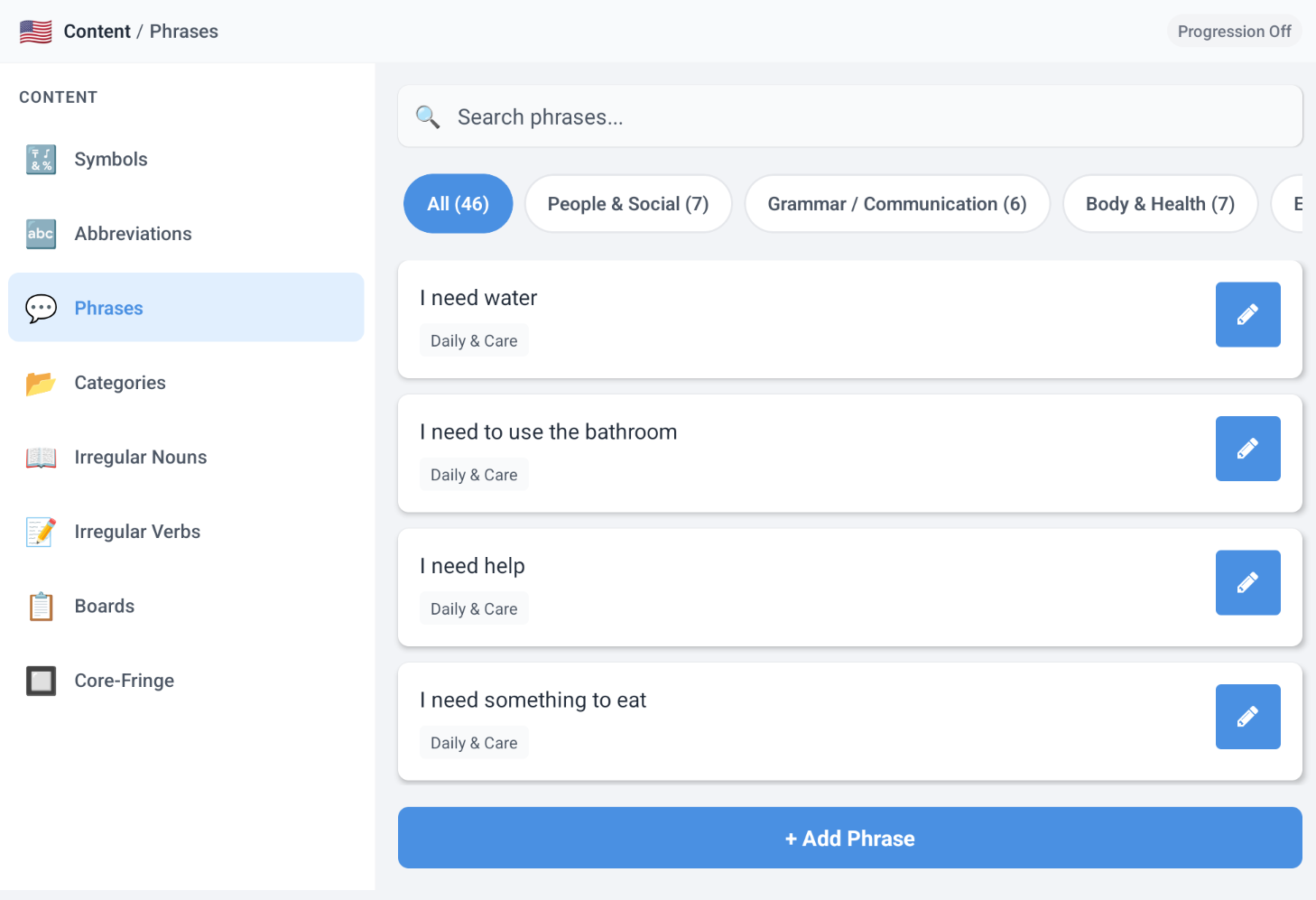
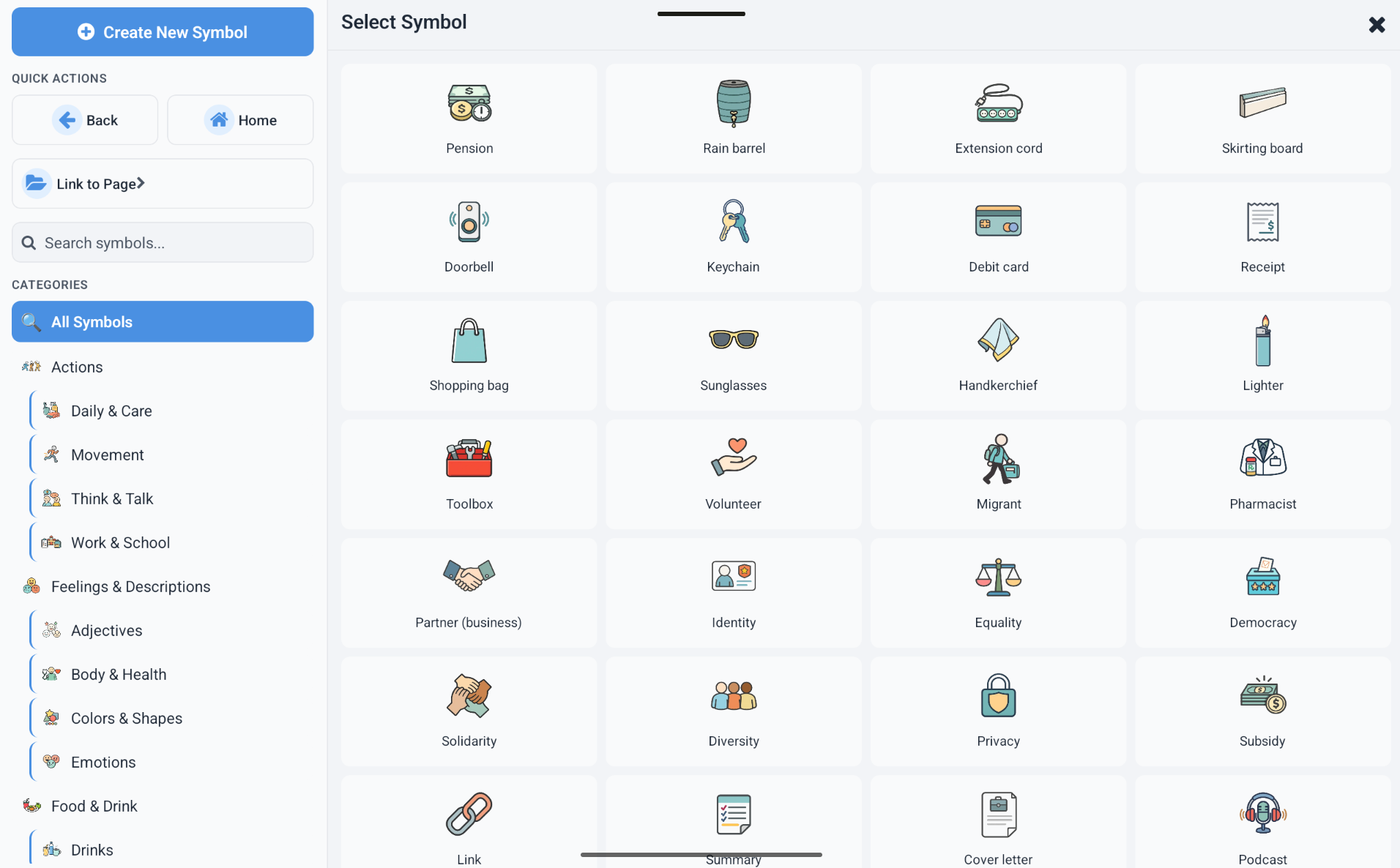
Create new symbols or edit existing ones with a rich editor. Set the label, spoken text, image, category, and advanced metadata - all in one place.
- Label - the visible name shown on the symbol card and in the grid
- Spoken Text - what the app says aloud; defaults to the label if left blank
- Emoji - a text-based emoji representation for quick visual recognition
- Custom Image - attach a photo from the device library or take one with the camera
- Category - every symbol must belong to a category for organisation and filtering
- Language - create or update the symbol for the currently active language
Advanced Features
Progressive Vocabulary and Fitzgerald Colours
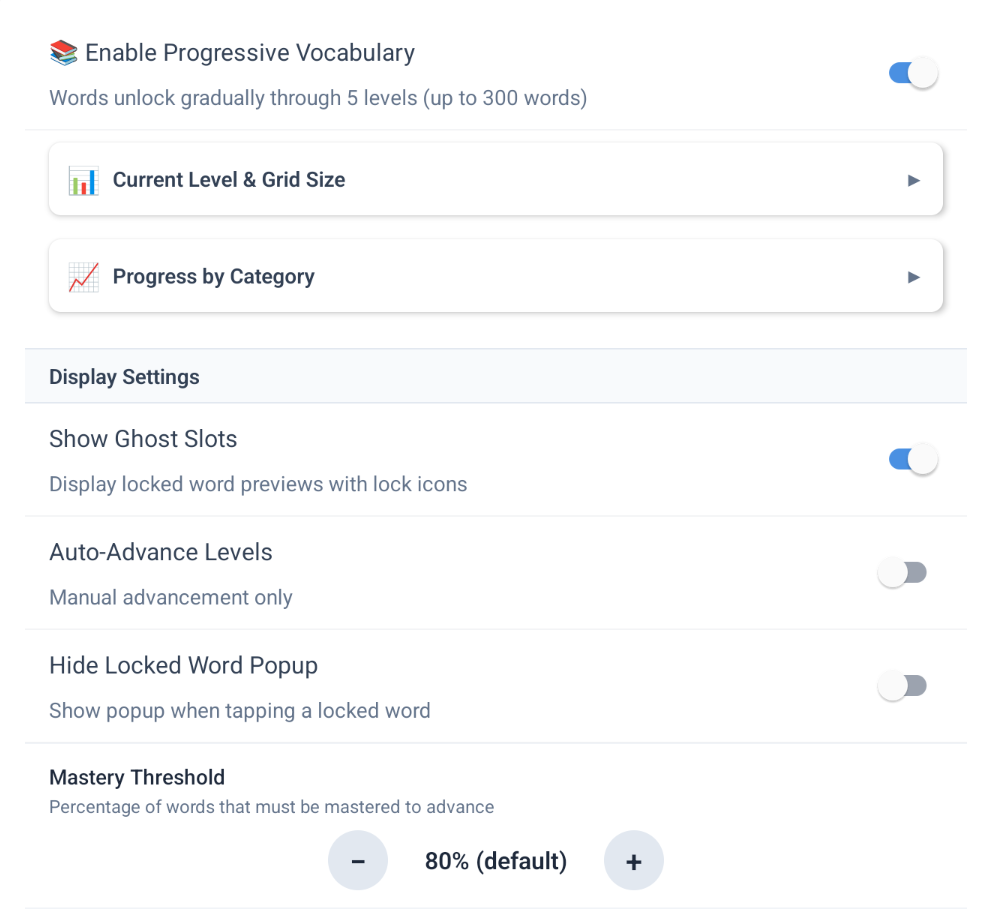
For clinicians using structured learning progressions, each symbol carries metadata that controls when and how it appears in the progressive vocabulary system.
- Position - defines the symbol placement in the progressive grid for motor memory consistency
- Motor Zone - groups symbols by physical screen region for motor-planning support
- Word Type - classifies the symbol (noun, verb, adjective, and more) for grammar and learning logic
- Introduction Level - controls at which of the 6 progressive levels the symbol becomes available
- Usage Priority and Prerequisites - fine-tune when a symbol unlocks and what must be mastered first
- Fitzgerald category override - explicitly assign a grammar colour group instead of relying on automatic behaviour
Safe Deletion
Delete with Awareness
When you delete a symbol, the app checks whether it is still used on activity boards or marked as a favourite so you never accidentally break a board.
- Before deletion, the app warns if the symbol is used on any activity boards
- A separate warning appears if the symbol is currently in your favourites list
- If you only want to remove a symbol from regular use, hiding is the safer option
- Deletion is permanent - use it only when you no longer need the symbol at all
Take Control of Your Vocabulary
Download Loquor AAC and build the perfect symbol library for every communicator.
Try Loquor AAC