 Loquor AAC
Core-Fringe Layouts
A multi-page communication system where high-frequency core words stay visible on every page while fringe vocabulary adapts to the current topic. The gold standard for structured AAC.
Layout Management
Create and Activate Layouts
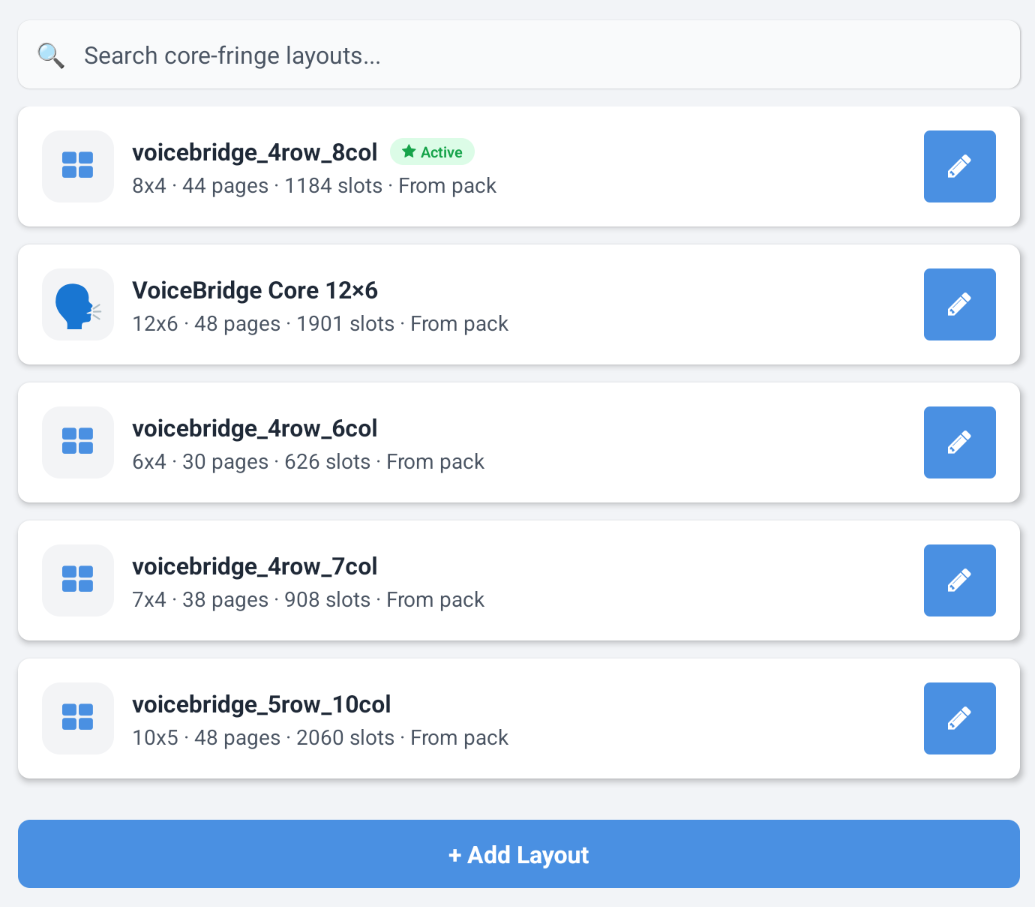
Each language can have multiple core-fringe layouts, but only one is active at a time. Create a layout, set its grid size, and activate it when ready.
- Browse all layouts for the current language with live search by name
- Create a layout with a name, icon or photo, and grid size (6-12 columns) - rows are calculated automatically
- Each new layout starts with a root Home page created for you
- Activate a layout to make it the one used in core-fringe mode for that language
- Only one layout can be active per language - the active layout is always sorted to the top
- Layout rows show icon, name, grid size, page count, slot count, pack origin, and active status
Page Hierarchy
Page Trees with Automatic Navigation
Organise vocabulary across a tree of pages. When you add a sub-page, the app automatically places a link tile on the parent and adds Home and Back buttons on the new page.
- Every layout starts with a root Home page - add sub-pages beneath it to build topic areas
- Creating a sub-page automatically places a link tile on the parent page (with a warning if no free slot exists)
- New sub-pages get automatic Home and Back navigation buttons on their own grid
- Edit a page title, icon, or image - link tiles pointing to it update automatically to stay in sync
- Copy a page to duplicate its structure and slots, then adjust for a new topic
- On tablets, the page tree shows inline in the editor; on phones, a dedicated Page Manager modal opens
Core Vocabulary
Pinned Core Slots vs Dynamic Fringe Slots
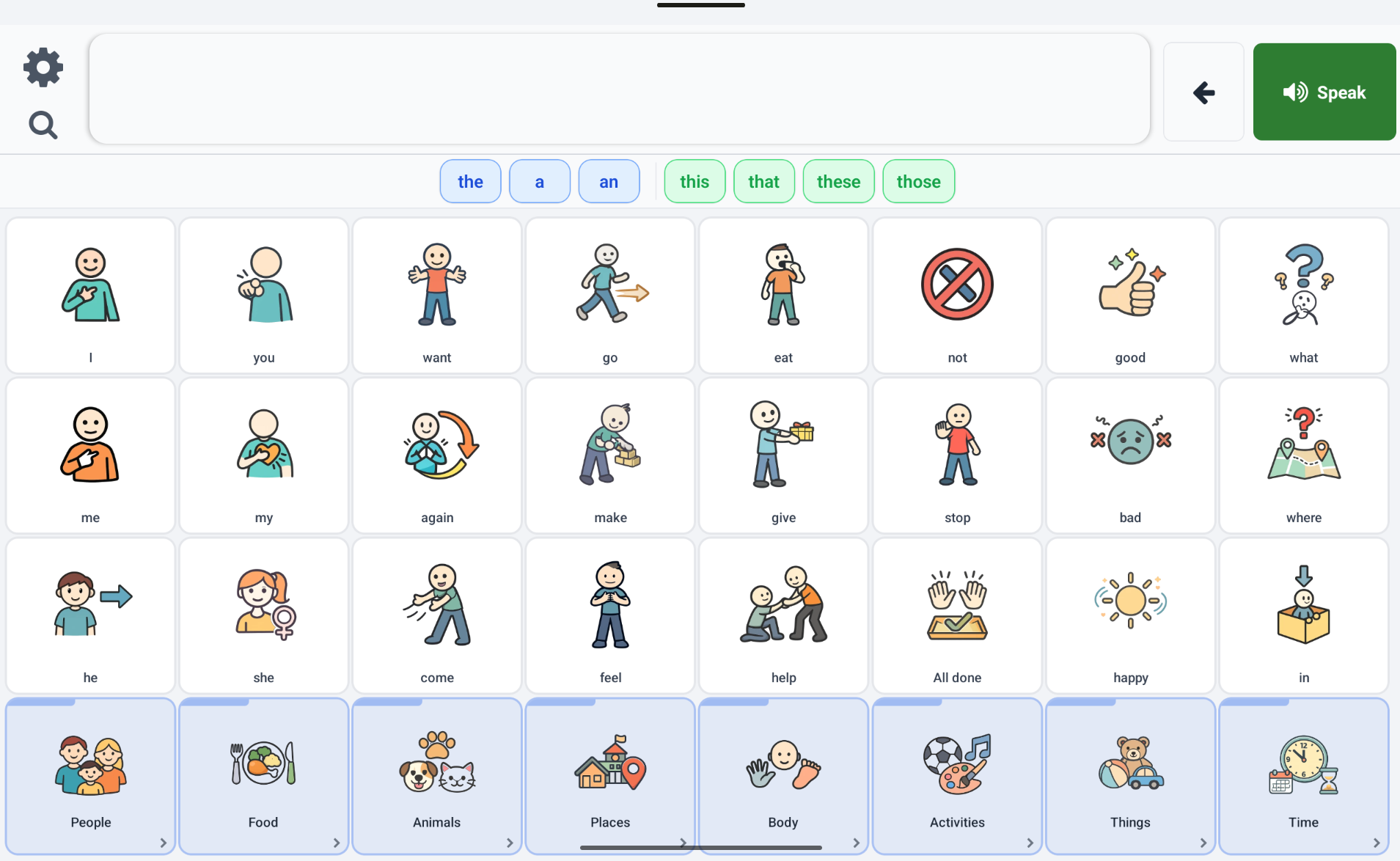
The heart of the core-fringe model: pin high-frequency words so they stay visible on every page, while fringe slots change as the user navigates between topics.
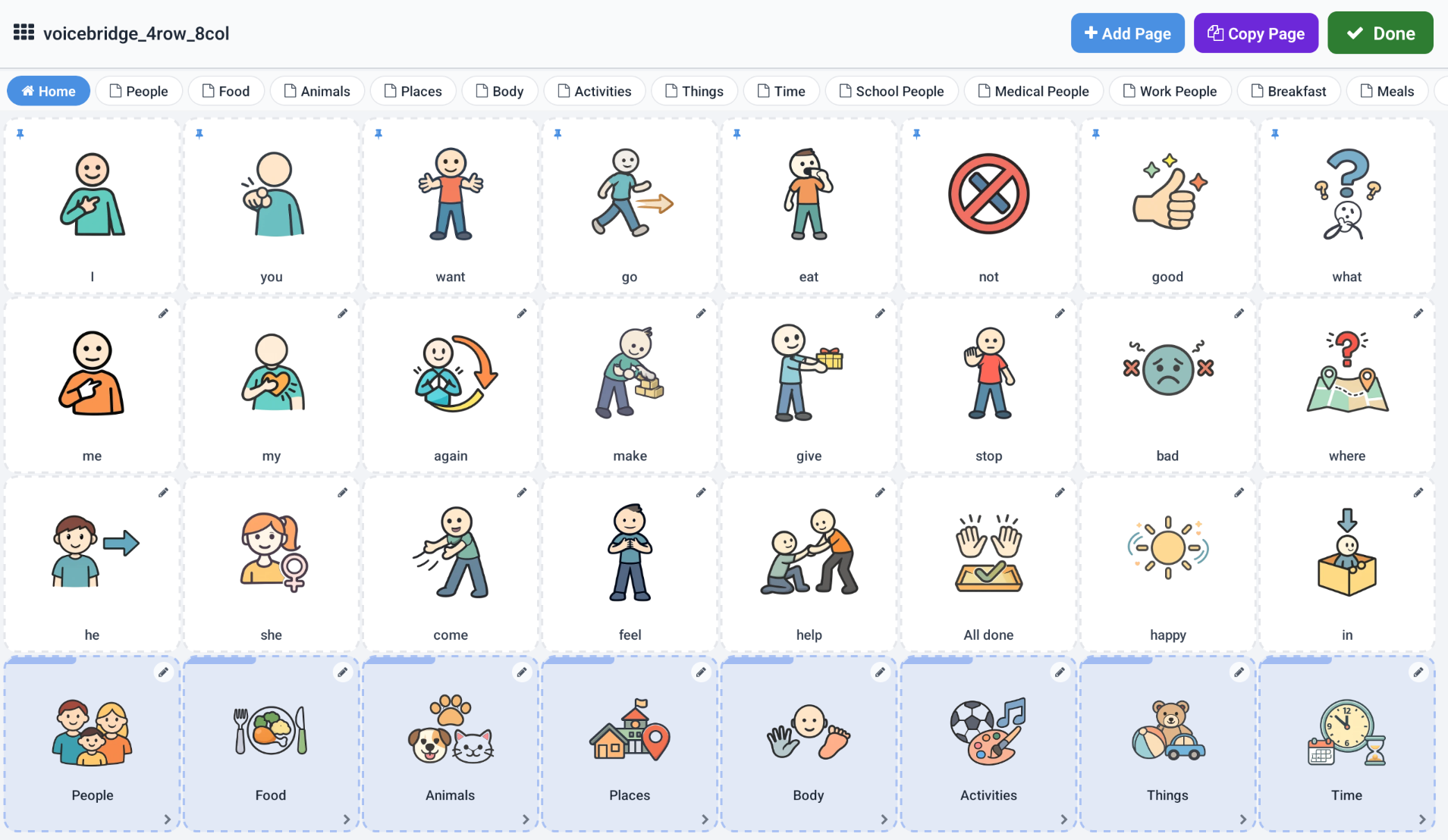
- Pinned (Core) slots stay visible during navigation - they act as shared core vocabulary across the layout
- Dynamic (Fringe) slots change when the user moves between pages - used for topic-specific words
- The slot editor includes a Pinned toggle so you can promote any word to core status
- Two slot types: symbol slots (vocabulary) and link slots (page navigation) - each with tailored editing options
- Move slots by selecting one cell and tapping another; swap by moving onto an occupied cell
Grid Editing
Edit Layouts Directly on the Grid
Open any layout or page in grid edit mode to populate cells, rearrange slots, and manage navigation - all without leaving the admin flow.
- Tap an empty cell to open the symbol picker - add vocabulary, navigation buttons, or page links
- Long-press an existing slot to edit its label, spoken text, image, colour, pinned state, or position
- Page selector in the edit bar lets you jump between pages while editing
- Add Page and Copy Page actions are available directly from the edit bar
- Tap Done to return to the layout editor - it reopens automatically so you do not lose your place
Experience Core-Fringe Communication
Try Loquor AAC and see how pinned core vocabulary transforms AAC.
Try Loquor AAC